What to Expect, What to Prepare, and What to Do for Your Google Business Profile Verification
If your Google Business Profile is stuck in verification limbo, you are not alone. Google has made the verification process significantly stricter in recent years, and video verification is now one of the most common methods businesses are asked to complete. For a lot of business owners, it's also the most confusing.
This guide breaks down exactly what Google needs from you, how to prepare, and what to do if things go sideways. And if you want to make sure your Google presence is dialed in from the start, you can always work with a Google Partner like Digital Savvy who knows this process inside and out.
First, What is a Google Business Profile?
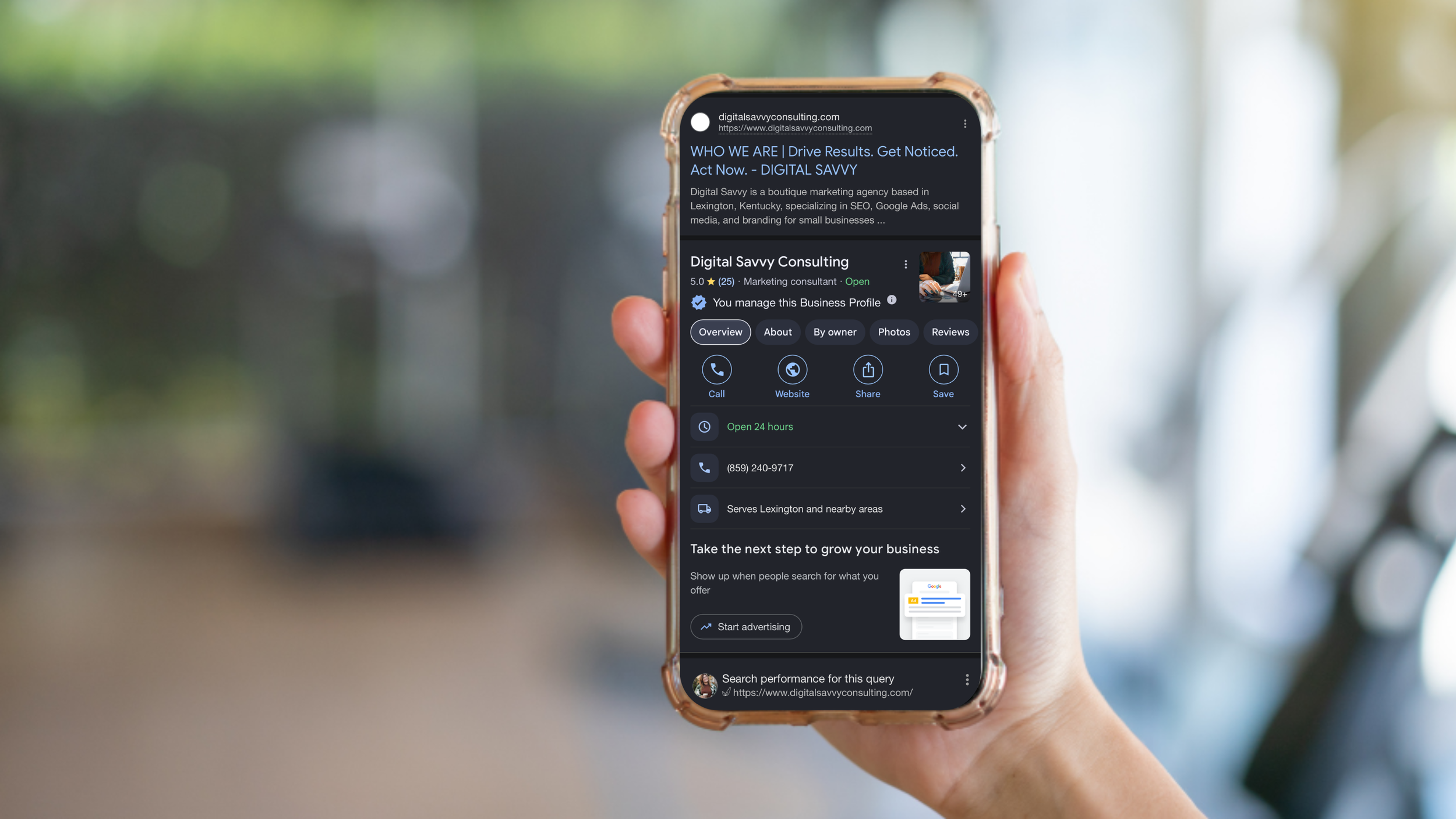
A Google Business Profile is the free listing that shows up on Google Maps and in search results when someone looks up a business by name or by category and location, think "plumber near me" or searching your business name directly. It shows your hours, address, phone number, photos, reviews, and posts, all without anyone having to click through to a website first.
For any business with a physical location or that serves customers in person, it's one of the highest-impact things you can set up, and it's free. Most people now check Google before they check anything else, so your profile is often the very first impression a potential customer gets, and for many searches it's the only thing they see before deciding to call, visit, or keep scrolling past you. It also directly affects local search rankings, a complete, active, well-reviewed profile tends to outrank competitors who've left theirs half-filled out or never claimed it. On top of that, it gives you direct access to customer reviews and the ability to respond to them, which builds trust before someone ever walks through your door.
And, it directly connects to your google ads strategy using performance max a.k.a. pmax ads so we can ensure more people see the profile, get directions, look at photos, check out your reviews before making a decision over your compeitors. It also allows you to post almost like social media and can include calls to action with direct links to contact you, add offers or special discounts, and show upcoming events.
And Second, Why Did Google Even Introduce Video Verification?
The short answer: spam and fake listings. Google introduced video verification to improve security, reduce fraudulent profiles, and speed up the process overall. Postcard verification used to take days or weeks, and it was easier to game. Video verification makes it much harder for bad actors to claim listings they have no right to manage.
The tradeoff is that real businesses with completely legitimate profiles sometimes still run into issues. That's frustrating, but understanding what Google is looking for makes the process a lot smoother.
What Verification Methods Does Google Offer?
Depending on your business type and account history, Google may offer one or more of the following methods. According to Google, here is what is currently available:
Video Verification – A real-time video recorded on your mobile phone showing your business location, signage, and proof of operations. Google requires access to your camera and location. This cannot be done on a desktop.
Phone or Text Verification – Google sends a code via call or text to your registered phone number.
Email Verification – If eligible, Google sends a code to the business email on the listing.
Live Video Call Verification – A Google representative verifies your business in real time through Google Meet. You show proof of your location and operations live. This is one of the most reliable options when it's available.
Postcard Verification – Google mails a postcard with a unique code to your business address. This is the least commonly offered method right now.
Bulk Verification – Available for businesses with 10 or more locations. Your account must be approved for bulk verification before creating new listings.
Important: If Google only offers you one method, that's the method you have to use. There's no way to swap it out. If you genuinely cannot complete the offered method, the Google Business Profile Community is your best resource.
How to Prepare for Video Verification
The video needs to do two things: prove your business is real, and prove you have the right to manage it. Here is what to have ready based on your business type.
For Storefront or Physical Location Businesses
Exterior signage – Your business name must be clearly visible. Street signs or nearby landmarks help confirm the location. Window decals and small office building signs are acceptable.
Interior of the business – Show branded items like menus, inventory, posters, or workspaces that reflect what your business does.
Proof of management – Show yourself unlocking the front door, accessing the POS system, handling inventory, or displaying a business license or other official paperwork.
If you do not have proper exterior signage, your verification will likely fail. This is the number one reason storefront businesses get rejected.
For Service-Area Businesses (No Public Storefront)
Your service area – Show recognizable street signs, landmarks, or advertisements in your area. Avoid generic or unmarked locations.
Business existence – Show branded vehicles, tools, uniforms, or marketing materials. A strong example is unlocking a branded van and showing the equipment inside.
Proof of management – Show yourself performing a service, using your tools, or display business documents like invoices, registration, or utility bills that match the name on your profile.
Documents to Have on Hand (Optional but Helpful!)
Google does not require documents during video verification, but showing them can support your case. If you include them, make sure your camera hovers over the document long enough for it to be legible. Acceptable documents include:
Business registration certificate
Utility bill matching your business name and address
Recent invoice or receipt with your business name
Tax documents or official government paperwork
Business license or permit
Step-by-Step: How to Record and Submit Your Verification Video
According to Google, here is how to initiate the process:
Use a mobile device. Video verification cannot be done on desktop. If you click "Get Verified" on desktop, Google will prompt you to scan a QR code and finish on your phone.
Enable location services and camera access on your device before you start.
Log into the correct Google account that owns or manages the Business Profile.
Search "my business" or go to Google Business Profile Manager and look for the "Get Verified" button.
Google may prompt you to confirm your address or phone number first. Use the information that's already on the profile.
Follow the on-screen instructions. Google will guide you on what to show based on your business type.
Preview your video before submitting. Google now lets you review the footage before it goes in, which saves a lot of time and avoids unnecessary resubmissions.
Submit and do not interrupt the upload. Stay on the screen while it uploads.
Review times vary from minutes to several days. Your profile may show as "pending edits" or "processing" in the meantime.
Your video should be at least 30 seconds and no longer than 5 minutes. Keep it steady and make sure signage, documents, and equipment are clearly in frame.
A Few Things to Know Before You Hit Record
Do not show faces – Google advises keeping the camera focused on business assets rather than people, likely due to privacy concerns.
Talking is optional – You can speak during the video but it's not required and does not impact the outcome. If you do talk, keep it minimal and relevant.
Upload timing matters – If your upload keeps failing, try submitting outside of peak hours. Early morning or late evening tends to work better than East Coast U.S. business hours (9am to 5pm ET) when Google's servers are busiest.
What to Do When Video Verification Gets Rejected
Here is the part nobody talks about enough. Even when you do everything right, Google's automated system can still reject your submission. It's inconsistent and it's frustrating. Here is what to do.
Step One: Review Google's Checklist
Google provides a three-part checklist after a failed verification that shows which elements were approved and which ones did not meet requirements. Read it carefully and address each item before you resubmit.
Step Two: Appeal the Decision
Google allows you to appeal a rejected verification. Inside your Google Business Profile dashboard, look for the option to request a review or appeal. This puts a real person on it instead of the automated system. When you appeal, be as thorough as possible in explaining your business type and what was shown in the video.
Step Three: Request a Live Video Call with a Google Rep
This is the option most people do not know exists. In some cases, after a failed attempt or during an appeal, Google will offer a live video call through Google Meet with a real support representative. If you see this option, take it immediately. It's far more reliable than the automated process because a human can ask follow-up questions and confirm details in real time.
Step Four: Visit the Google Business Profile Community
If you're stuck, the Google Business Profile Help Community is a legitimate resource. Google Product Experts are active there and can help escalate issues. When you post, include a clear description of your situation, what you tried, and any screenshots that might help.
Should the Business Owner Handle Verification, or Should the Agency?
This is one of the most common questions we get. Here is the honest answer.
Google's verification process is designed to confirm that a real person with a real connection to the business is managing the profile. That person is the business owner, typically not the owner. but, we take care of these types of issues a lot.
The business owner should:
Be the one on camera during the video
Be logged into the Google account that owns the profile
Ideally have the profile connected to a business domain email (like yourname@yourbusiness.com) rather than a personal Gmail
An agency can and should:
Help prepare and coach the owner before the video
Troubleshoot dashboard issues and navigate the appeal process
Be added as a manager or owner on the profile
Assist during a live Google rep call if the owner needs support
we can actually do the live video as well. As a google partner, we have done this many times and are happy to help!
Using a business domain email adds a layer of legitimacy that Google responds well to. If the profile is currently tied to a personal Gmail and you keep running into issues, it may be worth migrating to a Google Workspace account connected to your domain.
What you want to avoid: having the profile owned by an agency email or a generic Gmail with no clear connection to the business. If ownership ever needs to be verified or transferred, a domain-connected account makes everything smoother.
One More Thing: Do Not Let Your Business Name Get You Suspended﹗
The number one reason Google suspends a business profile after verification is the business name. If your name is stuffed with keywords and does not match your real-world signage and legal business name, Google will flag it. Keep your business name exactly as it appears in real life.
The Bottom Line
Google Business Profile verification is more work than it used to be, but rejection is not the end of the road. Appeal the decision, look for the live call option, make sure the right person is on camera with the right account, and lean on the Google Business Profile Community when you need backup.
If you want help navigating this process or getting your local Local SEO optimized the right way, Digital Savvy is a certified Google Partner and we do this every day for small businesses across the country. Reach out and let's figure it out together!
Here are a few more resources, just in case 💖View Digital Savvy on the Google Partners Directory
Google Business Profile Manager